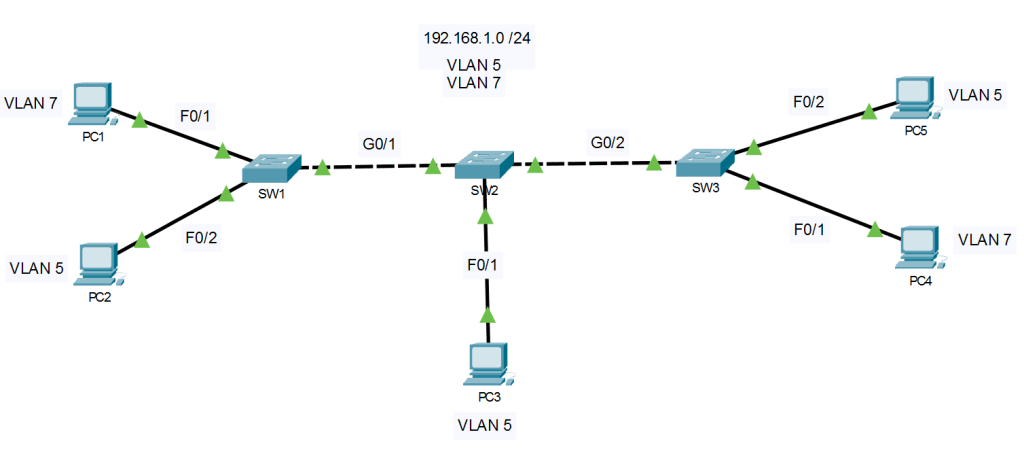

In this CCNA Lab, we dive into the fundamentals of Layer 2 switching by configuring VLANs, Access ports, and Trunk ports. Understanding how to segment traffic and manage communication between switches is a core skill for any network engineer and a critical topic for your CCNA (200-301) exam preparation. In this lab, you will learn: What is a VLAN, and why do we use them? The difference between Access Ports and Trunk Ports. How to configure VLANs on Cisco switches. Step-by-step commands for setting up 802.1Q Trunking. Verification commands to ensure your network is running correctly.
Lab Environment: Cisco Packet Tracer
What we will learn after completing this Lab:
1. Configure hostname all the Devices.
2. Create VLAN
3. Access interfaces and VLANs.
4. Trunk interfaces.
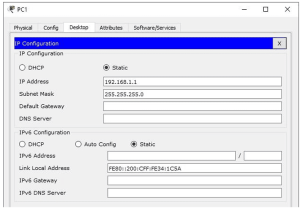
5. IP addresses on PCs.
1. Hostname and banner
Switch>enable
Switch#configure terminal
Switch(config)#hostname SW1
SW1(config)#banner motd #md abu sayed#
2. Create VLAN:
SW1
SW1(config)#
SW1(config)#vlan 5
SW1(config-vlan)#exit
SW1(config)#vlan 7
SW1(config-vlan)#exit
SW2
SW2(config)#
SW2(config)#vlan 5
SW2(config-vlan)#exit
SW2(config)#vlan 7
SW2(config-vlan)#exit
SW3
SW3(config)#
SW3(config)#vlan 5
SW3(config-vlan)#exit
SW3(config)#vlan 7
SW3(config-vlan)#exit
3. Access and VLANs
SW1
SW1(config)#interface FastEthernet 0/1
SW1(config-if)#switchport mode access
SW1(config-if)#switchport access vlan 5
SW1(config-if)#exit
SW1(config)#interface FastEthernet 0/2
SW1(config-if)#switchport mode access
SW1(config-if)#switchport access vlan 7
SW1(config-if)#exit
SW1(config)#interface GigabitEthernet 0/1
SW1(config-if)#switchport mode trunk
SW1(config-if)#
SW2
SW2(config)#interface FastEthernet 0/1
SW2(config-if)#switchport mode access
SW2(config-if)#switchport access vlan 5
SW2(config-if)#exit
SW2(config)#interface range GigabitEthernet 0/1-2
SW2(config-if-range)#switchport mode trunk
SW2(config-if-range)#
SW3
SW2(config)#interface FastEthernet 0/1
SW2(config-if)#switchport mode access
SW2(config-if)#switchport access vlan 7
SW2(config-if)#exit
SW2(config)#interface FastEthernet 0/2
SW2(config-if)#switchport mode access
SW2(config-if)#switchport access vlan 5
SW2(config-if)#exit
SW2(config)#interface GigabitEthernet 0/2
SW2(config-if)#switchport mode trunk
4. Trunks
SW1
SW1(config)#interface GigabitEthernet 0/1
SW1(config-if)#switchport mode trunk
SW1(config-if)#
SW2
SW2(config)#interface range GigabitEthernet 0/1-2
SW2(config-if-range)#switchport mode trunk
SW2(config-if-range)#
SW3
SW3(config)#interface GigabitEthernet 0/2
SW3(config-if)#switchport mode trunk
5. PC IP addresses
Each PC should have an IP address from the following subnet: 192.168.1.0 /24
6. Check Connectivity
vlan to same vlan
vlan to different vlan
Share this:

Discover more from Sayed Tech Lab
Subscribe to get the latest posts sent to your email.