
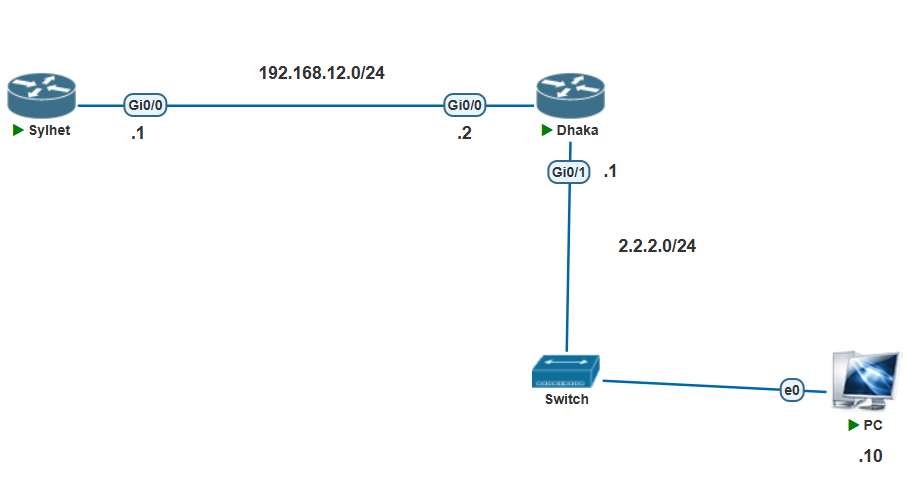

In this article, we will walk through the configuration and verification of static routing between two routers, Sylhet and Dhaka, in a network. The routers are configured using Cisco’s command-line interface (CLI), and the article will demonstrate how to set up static routes, verify connectivity, and troubleshoot when necessary.
Topology Overview
-
Router Sylhet is connected to Router Dhaka via the network 192.168.12.0/24.
-
Router Dhaka has two interfaces: one connected to Router Sylhet (GigabitEthernet0/0) and another connected to the network 2.2.2.0/24 (GigabitEthernet0/1).
-
Our goal is to configure static routing between Sylhet and Dhaka and ensure connectivity between the networks.
Step 1: Configuration on Router Sylhet
On Router Sylhet, the following steps configure the interface connected to Router Dhaka:
Access the CLI and enter global configuration mode:
Sylhet> enable
Sylhet# configure terminal
Configure the GigabitEthernet0/0 interface with the IP address 192.168.12.1 and subnet mask 255.255.255.0:
Sylhet(config)# interface gigabitEthernet0/0
Sylhet(config-if)# no shutdown
Sylhet(config-if)# ip address 192.168.12.1 255.255.255.0
The interface is now up and configured. Use the show ip route command to verify the routing table:
Sylhet# show ip route
The output shows that Sylhet has a directly connected network 192.168.12.0/24:
192.168.12.0/24 is variably subnetted, 2 subnets, 2 masks
C 192.168.12.0/24 is directly connected, GigabitEthernet0/0
L 192.168.12.1/32 is directly connected, GigabitEthernet0/0
Step 2: Configuration on Router Dhaka
Next, let’s configure Router Dhaka.
Access the CLI and enter global configuration mode:
Dhaka> enable
Dhaka# configure terminal
Configure the GigabitEthernet0/0 interface with the IP address 192.168.12.2 and subnet mask
Dhaka(config)# interface gigabitEthernet0/0
Dhaka(config-if)# no shutdown
Dhaka(config-if)# ip address 192.168.12.2 255.255.255.0
Configure GigabitEthernet0/1 interface with the IP address 2.2.2.2 and subnet mask 255.255.255.0:
Dhaka(config)# interface gigabitEthernet0/1
Dhaka(config-if)# no shutdown
Dhaka(config-if)# ip address 2.2.2.2 255.255.255.0
The interfaces on Dhaka are now up and configured. Verify the routing table on Dhaka using the show ip route command:
Dhaka# show ip route
The output should display both directly connected networks:
2.0.0.0/8 is variably subnetted, 2 subnets, 2 masks
C 2.2.2.0/24 is directly connected, GigabitEthernet0/1
L 2.2.2.2/32 is directly connected, GigabitEthernet0/1
192.168.12.0/24 is variably subnetted, 2 subnets, 2 masks
C 192.168.12.0/24 is directly connected, GigabitEthernet0/0
L 192.168.12.2/32 is directly connected, GigabitEthernet0/0
Step 3: Verifying Connectivity
At this point, the interfaces are configured correctly. Let’s check if the two routers can communicate with each other.
From Router Sylhet, attempt to ping the IP address 2.2.2.2 on Router Dhaka:
Sylhet# ping 2.2.2.2
The result shows timeouts, meaning Sylhet cannot reach Dhaka:
Sending 5, 100-byte ICMP Echoes to 2.2.2.2, timeout is 2 seconds:
…..
Success rate is 0 percent (0/5)
Step 4: Adding Static Route on Router Sylhet
The reason Sylhet cannot reach Dhaka is because there is no static route configured to reach the 2.2.2.0/24 network. Let’s add a static route on Sylhet to forward traffic destined for 2.2.2.0/24 to Dhaka.
On Router Sylhet, add the static route:
Sylhet(config)# ip route 2.2.2.0 255.255.255.0 192.168.12.2
Now, verify the routing table again:
Sylhet# show ip route
The output should show the new static route to the 2.2.2.0/24 network:
S 2.2.2.0/24 [1/0] via 192.168.12.2
192.168.12.0/24 is variably subnetted, 2 subnets, 2 masks
C 192.168.12.0/24 is directly connected, GigabitEthernet0/0
L 192.168.12.1/32 is directly connected, GigabitEthernet0/0
Step 5: Verifying Connectivity After Adding Static Route
Now that the static route has been configured, let’s test the connectivity again from Router Sylhet to Router Dhaka.
From Router Sylhet, ping the IP address 2.2.2.2 on Router Dhaka:
Sylhet# ping 2.2.2.2
This time, the ping should succeed:
Sending 5, 100-byte ICMP Echoes to 2.2.2.2, timeout is 2 seconds:
!!!!!
Success rate is 100 percent (5/5), round-trip min/avg/max = 0/0/0 ms
In this lab, we configured static routing between Router Sylhet and Router Dhaka. We learned how to:
-
Configure the interfaces with appropriate IP addresses.
-
Set up a static route on Router Sylhet to reach Router Dhaka‘s
2.2.2.0/24network. -
Verify the routing table and test connectivity using the
pingcommand.
This static routing configuration ensures that Router Sylhet can now reach Router Dhaka‘s network via the correct path. Static routes are useful in small networks or for specific routing requirements where dynamic routing protocols like EIGRP or OSPF are unnecessary.
Share this:

Discover more from Sayed Tech Lab
Subscribe to get the latest posts sent to your email.

