


What is LACP — in plain language
LACP (Link Aggregation Control Protocol) is an open standard (originally part of IEEE 802.3ad) that lets you combine multiple physical network links between two devices into a single logical link. That logical link:
-
Increases bandwidth by load-sharing traffic across the member links, and
-
Improves redundancy — if one physical link fails, the logical link stays up using the remaining links.
When multiple ports act as one logical link, switches and devices treat that group as a single “pipe” for traffic.
Core rules you must follow (and why)
LACP imposes strict rules so the combined links behave predictably. Each rule below is short and the reason is given in plain terms.
-
All links must share the same settings.
If one link is configured differently (e.g., different VLANs or trunk/access mode), traffic can be split incorrectly or dropped. -
All ports must have the same speed and duplex.
Load balancing assumes similar link capacity. A 1 Gbps port and a 100 Mbps port in the same group will cause inefficient balancing and errors. -
All ports must be in the same VLAN (or same allowed VLAN list for trunks).
Mixing VLANs across member ports can cause traffic to go to the wrong place or create loops. -
All ports must have the same operational mode.
(Example: all access ports, or all trunk ports; all routed / L3 or switched / L2.) Mixing L2 and L3 or mixing trunk with access breaks the aggregate. -
No ports in the channel can have SPAN (port mirroring) configured.
Mirror sessions and aggregation conflict — mirroring a member port can interfere with load balancing and traffic flow. -
Group size limits: up to 16 ports in an LACP EtherChannel, but only 8 can be active at once.
(Some vendors implement this limit; the behavior is: extra members become standby and only 8 forward traffic at a time.) Plan your links knowing not all will be simultaneously active on some platforms. -
LACP can run in
activeorpassivemode.-
Active — the interface actively sends LACP negotiation packets (tries to form the channel).
-
Passive — the interface listens and will respond to LACP packets, but it won’t initiate the negotiation.
Important: At least one side must beactiveto form the LACP channel. If both sides are passive, the channel won’t come up.
-
-
LACP control messages use a reserved multicast MAC:
01:80:C2:00:00:02(often shown as0180.C200.0002).
These packets are special — switches don’t forward them through normal data paths; they’re used only for LACP communication.
Step-by-step checklist to prepare & configure LACP
Follow this checklist before and while you configure an EtherChannel/LACP group. I’ll keep steps vendor-neutral and then show a small Cisco-style example.
Preparation
-
Plan which ports will be grouped.
Pick physically adjacent ports if possible and make sure both ends of the link use the same number/type (e.g., all GigabitEthernet). -
Verify physical link parameters.
Make sure each chosen port is the same speed (e.g., all 1 Gbps) and set to the same duplex (full duplex). -
Decide: access or trunk?
If these are access ports, verify the same VLAN on every port. If trunks, make sure the same native VLAN and allowed VLAN list are set on all member ports. -
Remove conflicting settings.
Ensure none of the ports are configured for SPAN/mirroring, service-policy that modifies frames, or other per-port features that might break aggregation.
Configuration (general flow)
-
Set the ports to identical Layer-2/Layer-3 mode.
Configure them all as access or trunk (L2) or all as routed interfaces (L3); don’t mix. -
Set LACP mode — at least one side must be
active.
Typical safe choice: set both ends toactive. If you prefer the other side to decide, set it topassive. -
Create the channel/aggregate and assign member interfaces.
Bind the ports into the same logical channel group. -
Verify the bundle is up and traffic flows.
Check LACP status and verify traffic is balanced and the link is up.
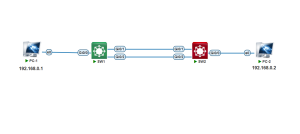
SW1 LACP Configuration
SW1(config)#interface range ethernet 0/0-2
SW1(config-if-range)#switchport trunk encapsulation dot1q
SW1(config-if-range)#switchport mode trunk
SW1(config-if-range)#channel-protocol lacp
SW1(config-if-range)#channel-group 1 mode active
SW1# show etherchannel summary
SW1# show etherchannel detail
SW1# show etherchannel port-channel
SW1#show spanning-tree vlan 1
SW2 LACP Configuration
SW2(config)#interface range e0/0-2
SW2(config-if-range)#switchport trunk encapsulation dot1q
SW2(config-if-range)#switchport mode trunk
SW2(config-if-range)#channel-protocol lacp
SW2(config-if-range)#channel-group 1 mode passive
SW2# show etherchannel summary
SW2# show etherchannel detail
SW2# show etherchannel port-channel
SW2#show spanning-tree vlan 1
Troubleshooting — quick checks if the channel won’t form
-
Are both sides using compatible modes?
If both sides arepassive, the LACP handshake never starts. Make at least one sideactive. -
Are speed/duplex mismatched?
Fix any mismatches (autonegotiation or manually configure uniform settings). -
Are VLANs/trunk settings identical?
Check native VLAN and allowed VLAN lists. For access ports, confirm the same access VLAN. -
Is SPAN or another feature applied to any member port?
Remove SPAN from those ports if present. -
Are some member ports down physically?
Inspect link lights and interface counters. -
Check logs/show commands (vendor-specific) for LACP PDUs, channel state, and errors.
Quick cheat-sheet/summary
-
LACP = standard way to bundle links (802.3ad).
-
All member ports must match (speed, duplex, VLAN, mode).
-
No SPAN on member ports.
-
Up to 16 ports per group (commonly only 8 active at once on many platforms).
-
LACP modes: active (initiates) and passive (waits). At least one side must be active.
-
LACP uses multicast MAC
01:80:C2:00:00:02for control messages.
Share this:

Discover more from Sayed Tech Lab
Subscribe to get the latest posts sent to your email.

