


What is VLAN (Virtual LAN) and VLAN Access and Trunk Link?
In this blog, we will learn what VLAN is in an easy and detailed way, Including Types of VLAN, VLAN Access and trunk links, and practical commands for configuring VLAN. We will also cover a practical lab with configuration and testing.
All devices that reside in the same LAN are in the same broadcast domain. All devices connected to a switch normally reside in the same broadcast domain. However, a technology called VLAN allows a switch to create multiple broadcast domains.
A Virtual LAN (VLAN) is a broadcast domain created by one or more switches.
A switch creates VLANs by assigning its interfaces to different VLANs.
Below are some benefits of implementing VLANs:
- Allows logical grouping of users or devices based on their functions or departments instead of their physical locations.
- Reduces network overhead by limiting the size of each broadcast domain.
- Offers enhanced network security by keeping sensitive devices on a separate VLAN.
VLAN trunking is used when a VLAN spans across multiple switches. When a switch receives a Frame from another switch, it uses the frame tag created by the other switch to identify the VLAN Membership of the frame and forwards it out to ports associated with the corresponding VLAN.

When SW1 receives a broadcast from a device in VLAN 2, it will add a header to the frame and forward it to SW2. SW2 will know which interfaces it should forward to all other members of VLAN 2. The VLAN identifier will be removed when the frame is forwarded out an access link.
Where is VLAN 1? VLAN 1 is the administrative VLAN, which is recommended for management purposes only, even though it can still be used for workgroup access purposes.
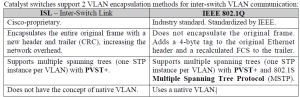
Both protocols utilize a 12-bit VLAN ID field, and hence support the same number of VLANs.

Let’s take a look at 802.1Q:

Here’s an example of an 802.1Q Ethernet frame. As you can see, it’s the same as a normal Ethernet frame, but we have added a tag in the middle (that’s the blue field). In our tag, you will find a “VLAN identifier,” which is the VLAN to which this Ethernet frame belongs. This is how switches know to which VLAN our traffic belongs. That’s not too bad, right? There’s also a field called “Priority,” which is how we can give a different priority to the different types of Traffic.
VLANs and Trunks…if you are following me so far, you understand the basics very well!
Let’s take a look at the options we have to configure VLANs:

Static VLAN is the most common method; you just configure the VLAN yourself on the interface.
Dynamic VLAN is where you have a VMPS server (VLAN Management Policy Server), which has a database of MAC address – VLAN information. It will check the MAC Address of the computer and assign you the VLAN that it found in its database. Is this a Good idea? Probably not, since MAC addresses are easy to spoof. The third option is the Voice VLAN, which has to be configured separately on a Cisco switch. The link between the Switch and the phone is actually a trunk!
There is a 4th method, which is popular nowadays; you can use 802.1X and a RADIUS server to authenticate users and dynamically assign users to a VLAN. This gets even more Interesting to add NAC (Network Admission Control) to it. If your laptop doesn’t have all the latest Windows Updates and Anti-virus definitions, you will be assigned to a special Quarantine VLAN where you can only update you’re Machine. Once you are updated, you will be moved to the correct VLAN.
Back to our trunks…every VLAN that goes across the trunk will be tagged using the 802.1Q Protocol, but there is one exception. The native VLAN is the only VLAN that will not be tagged. That’s right, it will be using regular Ethernet frames. So what do we use the native?
VLAN for?
- Management protocols like CDP (Cisco Discovery Protocol) use the native VLAN.
- Remote management of your Cisco switch uses the native VLAN.
- The default native VLAN is VLAN 1.
Below shows the Trunking actions for different types of switch port modes:
SW(config-if)#switchport mode dynamic auto
Default on a lot of Cisco switches, but is changing to dynamic desirable on most new switches.
SW(config-if)#switchport mode dynamic desirable
Makes the interface actively attempt to convert the link to a trunk link.
SW(config-if)#switchport mode trunk
Puts the interface into permanent trunking mode and negotiates to convert the neighboring link into a trunk link. The interface becomes a trunk interface even if the neighboring interface is in access mode.
SW(config-if)#switchport nonegotiate
Prevents the interface from generating DTP (Dynamic Trunk Protocol, the protocol that negotiates trunking modes) frames. The interface must first be set to either trunk or access.
access + dynamic auto = access
access + dynamic desirable = access
access + trunk = traffic in the native VLAN will cross the link successfully, but other VLANs’ traffic will not
dynamic auto + dynamic auto = access
dynamic auto + dynamic desirable = trunk
dynamic auto + trunk = trunk
Note: A trunk link will never be established if the interfaces at both ends of a trunk link are Configured as the dynamic auto mode!
Below shows the 2 types of links in switched networks:
Access links:
Belongs to only one VLAN at a time and only allows a single VLAN to be used across the link (directly connected hosts are communicating in one VLAN only). VLAN information associated with a frame is removed before the frame is forwarded out an access link. Hence, hosts are unaware of the usage of VLANs and just assume a broadcast domain. Connecting hosts and hubs.
Trunk links:
Can be part of multiple VLANs at a time and can carry traffic for multiple VLANs when VLANs span across multiple switches. They are point-to-point links between 2 switches,- router, or a switch-host. They are not shown in the output of the show vlan EXEC command. The term trunk was inspired by the telephone system trunks, which carry multiple conversations at a time.
LAN SEGMENTATION:
There is often a need for communication to be restricted between hosts in the same network. The best way to do this is by using VLANs.

Create a VLAN:
Switch(config)# vlanX
Configure Access/Trunk:
Switch(config)# interface GigaEthernet0/1
Switch(config-if)# switchport mode access
Switch(config-if)# switchport access vlan X
Switch(config)# interface GigaEthernet0/2
Switch(config-if)# switchport mode trunk
Let’s do a practical using this Lab Design:
-
Hostname and banner
Switch>enable
Switch#configure terminal
Switch(config)#hostname S1
S1(config)#banner motd #Sun Networking Technology#
-
Access and VLANs
Switch1
S1(config)#interface GigaEthernet 0/0
S1(config-if)#switchport mode access
S1(config-if)#switchport access vlan 5
S1(config-if)#exit
S1(config)#interface GigaEthernet 0/1
S1(config-if)#switchport mode access
S1(config-if)#switchport access vlan 7
S1(config-if)#exit
Switch2
S2(config)#interface GigaEthernet 1/0
S2(config-if)#switchport mode access
S2(config-if)#switchport access vlan 5
S2(config)#interface GigaEthernet 1/1
S2(config-if)#switchport mode access
S2(config-if)#switchport access vlan 7
S2(config-if)#exit
Switch3
S2(config)#interface GigaEthernet 1/1
S2(config-if)#switchport mode access
S2(config-if)#switchport access vlan 5
S2(config-if)#exit
S2(config)#interface GigaEthernet 1/2
S2(config-if)#switchport mode access
S2(config-if)#switchport access vlan 7
S2(config-if)#exit
-
Trunks
Switch1
S1(config)#interface GigabitEthernet 0/1
S1(config-if)#switchport mode trunk
S1(config-if)#exit
S1(config)#interface GigabitEthernet 0/1
S1(config-if)#switchport mode trunk
S1(config-if)#exit
Switch2
S2(config)#interface range GigabitEthernet 0/0
S2(config-if-range)#switchport mode trunk
S2(config-if-range)#
Switch3
S2(config)#interface GigabitEthernet 0/1
S2(config-if)#switchport mode trunk
-
PC IP addresses
Each PC should have an IP address from the following subnet: 192.168.1.0 /24
-
Why can’t PC2 ping PC4?
PC2 should be able to ping PC4, since they belong to the same VLAN. But the ping fails.
Reason: Switch2, which is on the way, isn’t aware that VLAN 7 exists in the network.
Solution: create VLAN 7 on Switch2:
S2(config)#vlan 7
Note: There is a problem in this lab. You need to find the problem as well as the solution. If you don’t find that, ask me in the comments section.
Share this:

Discover more from Sayed Tech Lab
Subscribe to get the latest posts sent to your email.

